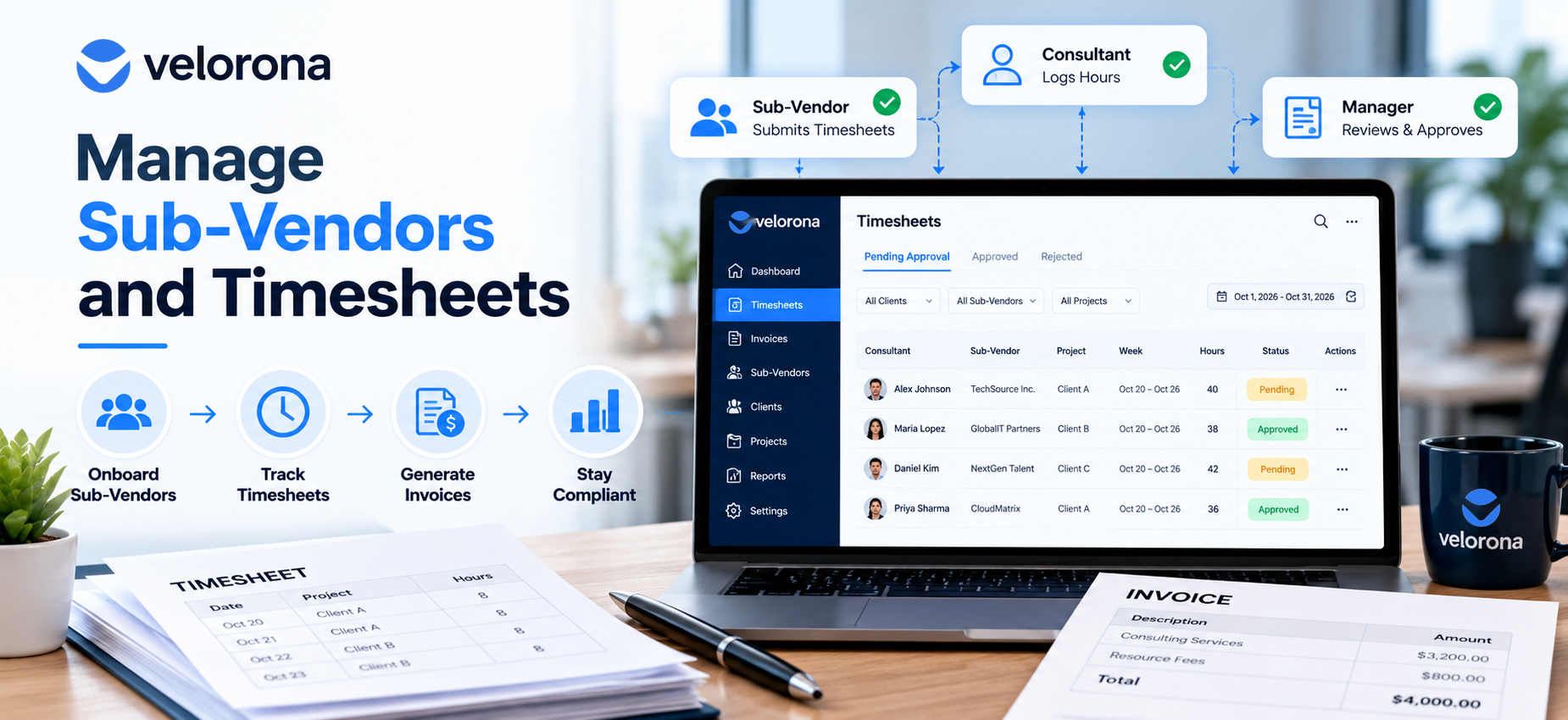
How to Manage Sub-Vendors and Consultant Timesheets in an IT Staffing Agency
Sub-vendor management for staffing agencies is the set of records and approvals that ties each vendor to its consultants, each consultant’s approved hours to an invoice, and each invoice to a payment decision. When those links hold, you can trace any billed hour to its worker and approver. When they break, you pay for hours nobody can account for.
A vendor invoice lands on a Thursday. It bills 44 hours for one consultant. Your timesheet shows 36. Who approved the other eight? On which project? Under which vendor?
If answering takes more than a few minutes, the invoice isn’t the real problem. The chain of records behind it is. This guide walks that chain end to end: onboarding a vendor, assigning consultants, approving timesheets, tracing hours to invoices, and keeping records you can defend in a dispute.
Three records describe one hour of work. Do yours agree?
What Is Sub-Vendor Management in an IT Staffing Agency?
A sub-vendor is an outside company you engage to supply consultants. You hold the contract with the end client, and the sub-vendor holds the relationship with the person doing the work.
That structure makes it different from ordinary vendor payment. The same hour of work appears in three places: the consultant’s timesheet, the invoice you send your client, and the invoice your sub-vendor sends you. Managing sub-vendors means keeping those three views of one hour in agreement.
Four record types carry the workflow:
| Record | What It Establishes | Where It Breaks |
|---|---|---|
| Vendor profile | Who the vendor is, contacts, payment terms, invoice frequency | Terms agreed by email and never entered in a system |
| Consultant assignment | Which consultant works on which client project, under which vendor | Consultant tied to the wrong vendor or no project |
| Approved hours | Which hours a reviewer accepted as worked and billable | Hours approved without checking project or rate |
| Invoice decision | Whether a vendor invoice was accepted, rejected, or paid | No record of who reviewed it or what they compared |
This isn’t recruiting. An ATS handles sourcing and placement. Sub-vendor management starts the day a consultant is placed and runs until the last invoice is paid and records are retained.
A wrong invoice frequency on day one becomes a billing surprise in month three.
How Do You Onboard a New Sub-Vendor?
Capture the company record, name one primary administrator who receives invoices and manages the vendor’s team, agree payment terms and invoice frequency in writing, and confirm the vendor’s consultants attach to the right projects before anyone logs hours. Every downstream decision inherits what you capture here.
Onboarding Checklist
Gather this before you send an invitation:
- Legal company name, email, and phone with country code
- Full address and time zone
- Primary administrator’s name, phone, and the email that receives the invitation
- Payment terms from the contract, such as NET 15 or NET 30
- Invoice frequency from the contract: weekly, biweekly, semi-monthly, or monthly
- Additional billing or project contacts
- Signed MSA, W-9, and certificate of insurance, stored with the vendor record or wherever your firm keeps contracts
Onboarding Steps in Velorona
The Sub-Vendors module is available to Company Admins and Payroll Admins. Only a Company Admin can send an invitation. The invite flow has three steps:
- Search first. Type the company name. If it exists, link to the record instead of creating a duplicate.
- Enter details. Complete company information and the primary administrator’s details. That person receives the invitation and manages the account after signup.
- Set terms. Choose payment terms and invoice frequency, review the confirmation, and send. The vendor appears with Active status.
Points of contact are reference contacts only. They don’t get logins or invoices. Each vendor has one primary administrator and unlimited contacts.
What to Verify Before Calling Onboarding Complete
Active status isn’t the same as ready to bill. Confirm the administrator accepted and can log in, the payment terms match the signed contract, the invoice frequency matches what you agreed, and the vendor’s consultants are added and assigned to your projects.
Vendor records have three statuses. Active allows hours and invoicing. Inactive pauses both and can be reversed. Archived is permanent and read-only. Use Inactive for a contract gap and Archived only when the relationship is over.
Neither a wrong project nor a wrong vendor announces itself. Both produce an invoice that looks normal.
How Do You Assign Consultants to the Correct Sub-Vendor?
Consultants tie to a vendor through project assignment, not a direct link. The vendor’s own administrator adds their people. Those people get assigned to your client projects, and once they log hours, they appear under that vendor.
This matters because the association decides who gets billed. Approve hours under the wrong project and you bill the wrong client. Record them under the wrong vendor and you pay the wrong company.
How the Chain Works
- A project is created for one client and can’t move to another.
- A consultant is assigned to that project, which is the only way they gain access to a client.
- The consultant logs hours against the project.
- The consultant then appears under the client’s users and, for vendor-supplied people, under the vendor’s users with total usage hours.
You don’t add or remove sub-vendor users from your side. Your view is read-only. If a list looks empty, the likely causes are that the administrator hasn’t added the consultants, they aren’t assigned to your projects, or they haven’t logged time yet. Total usage hours shows hours already logged, not a forecast.
Pre-Billing Checklist
- Every active consultant from this vendor appears in their user list
- Each consultant is on the correct project, and the project belongs to the right client
- Consultants on multiple engagements are assigned to each project
- Vendor-level usage hours fit the headcount on assignment
- Client bill rate and vendor payout rate are both set
- Project hours haven’t passed allocated hours without confirming the billing effect
Two mistakes to avoid. Don’t treat a consultant’s total hours as billable to one client when they span two projects. And don’t assume a removed consultant’s history disappears. Tracked hours stay in the record for reporting and billing history.
Approval is the last moment a wrong number is cheap to fix.
How Should You Track and Approve Consultant Timesheets?
Track hours on weekly timesheets tied to a client and project, route each week to a named approver, and treat only approved hours as billable. Approval turns recorded time into money owed in two directions. See Velorona’s timesheets.
The Timesheet Lifecycle
| Status | Meaning | Consultant Can Edit? |
|---|---|---|
| Open | Week started, not submitted | Yes |
| Submitted | Sent for review | No |
| Approved | Accepted and locked for payroll and billing | No |
| Rejected | Returned with a required message | Yes |
| Archived | Archived by a Company Admin, permanent | No |
Four behaviors are easy to get wrong:
- The flow isn’t strictly linear. An approver can approve a rejected timesheet directly.
- An approved timesheet can be rejected later, but only within 90 days of its start date.
- A rejection needs a message. An approval message is optional, so writing one is a team habit.
- A “Haven’t Worked” week skips review and moves straight to Approved.
Each timesheet separates billable from non-billable hours. Only billable hours feed invoices.
What to Check Before Approving
- The client, project, and approver in the header are correct
- The Billable and Non-Billable tabs, read separately
- The daily detail against known holidays, leave, or site closures
- Any attachments, especially client-signed approvals
- The billable total against the consultant’s schedule and the project’s allocated hours
An Illustrative Example
This is a constructed scenario, not a real customer. A consultant placed through a sub-vendor submits 44 billable hours in week 12, including eight on a day the client’s office was closed. The approver rejects the week with the message “8 hrs logged on 11/27, client site closed, please confirm or remove.” The consultant corrects it to 36 hours and resubmits, and the approver accepts.
The four extra hours never reach an invoice in either direction. The activity log carries the original entries, the rejection and reason, the correction, and the approval, each with a timestamp and a name. That record is worth more than the four hours if the vendor later bills 44.
Hours don’t become money by magic. Six records stand between a keystroke and a payment.
How Do You Trace Approved Hours to Vendor Invoices?
Follow six linked records: time entry, submitted timesheet, approval decision, invoice schedule, invoice review, and payment. Each step leaves a timestamped record. The chain only holds if someone checks the handoffs.
The Six Steps, and What Each One Leaves Behind
- Time entry. The consultant records daily hours against a client and project, split into billable and non-billable. Entries stay editable while the week is Open.
- Timesheet submission. The week moves to Submitted and locks for the consultant. The activity log records who submitted it and when.
- Review and approval. An approver, payroll admin, or company admin approves or rejects. Approval locks the week and makes those hours available to payroll and billing. Rejection requires a written reason.
- Invoice schedule. Schedules group billable hours into billing periods, one period per client, user, and project, on the frequency set in that user’s time and invoice setup. Schedules generate automatically only when the invoicing mode is set to automatic.
- Invoice review. The invoice moves through Draft, In Review, Pending, Pending Confirmation, and Paid, with Rejected and Overdue as alternate states. Editing is possible only in Draft or Rejected.
- Payment tracking. Payment Received moves an invoice to Paid from Pending, Pending Confirmation, or Overdue. Archived invoices stay as read-only records.
Each step leaves a timestamped record. The chain only holds if someone checks the handoffs, because not every link is automatic.
How Finalization Decides What Gets Billed
A schedule finalizes automatically once every entry in the period is approved. If entries stay unapproved, the system waits. After 15 days past the period end, it force-finalizes using only approved hours.
That rule deserves a calendar reminder. Unapproved hours don’t block billing indefinitely. They drop out of it. A week that sat unreviewed gets under-billed, and the gap surfaces weeks later. You can finalize manually sooner, with a warning and a second confirmation. Pausing a schedule requires a reason and can’t be undone.
The same lifecycle covers sub-vendor billing. For vendor-supplied consultants, a sub-vendor schedule appears under Employee-Hours Invoices, in the Receive section.
Unapproved hours don’t block billing. After 15 days past period end, they drop out of it. Review timesheets before the period closes.
Reviewing a Received Invoice Is Not the Same as Reconciling It
This distinction is the single most important thing in this guide.
When a sub-vendor bills you, the invoice arrives in Received Invoices under Employee-Hours Invoices. Incoming drafts land in an Awaiting Review tab, where you accept the draft and move it forward, or reject it and return it for correction. Accepted drafts join the main payable flow. Rejected ones go to Rejected, and the sender must correct and resend.
From there you can send the invoice for internal review, withdraw a review request, follow up with the sender, resend a copy internally, mark it paid, or archive it. Bulk actions are available when several invoices need the same next step.
That is a structured human decision, with a record of who decided and when. The records that make comparison possible sit alongside it: the vendor’s user list with total usage hours, the invoice schedule behind the billing period, and the timesheets themselves. Velorona’s documentation frames comparing user hours against sub-vendor invoices as a review task, and tells payroll admins to compare hours and escalate mismatches to a Company Admin.
Velorona’s vendor hub is also described as matching sub-vendor invoices against approved hours line by line and flagging mismatches before payment. Ask for a demonstration on your own data to see exactly how matching behaves in your setup. For the mechanism, see Bidirectional Invoice Reconciliation.
Treat three categories separately whenever you evaluate any staffing agency invoice reconciliation workflow, in Velorona or anywhere else:
| Category | Example | How to Treat It |
|---|---|---|
| Documented capability | Received invoices can be accepted or rejected; schedules include only approved hours | Rely on it |
| Recommended practice | Compare vendor invoice totals against vendor user hours before accepting | Assign an owner and a deadline; the review won’t do it for you |
| Capability to confirm | Automatic invoice-to-hours matching and mismatch flags | Ask for a demonstration on your own data before relying on it |
Reconciliation checklist before accepting a vendor invoice
- The invoice period matches a billing period you recognize for that vendor
- Every consultant named appears in that vendor’s user list
- Hours per consultant match the approved timesheets for that period, not submitted or open ones
- The rate per consultant matches the vendor payout rate on their time and invoice record
- Any sub-vendor PO number on the invoice matches the one on file
- Hours billed to you reconcile with hours you billed the client for the same consultant and period
- One named person signed off on the comparison, and the invoice carries a note or attachment saying so
Two human decisions hold the whole chain together.
What Does the End-to-End Chain Look Like?
The order runs: vendor onboarded, consultants assigned to projects, hours logged, timesheet submitted, timesheet approved, schedule finalized, vendor invoice received, invoice reviewed, payment recorded, record archived. Every step leaves a timestamped record.
Two steps are human decisions: an approver accepting a week of hours, and a reviewer accepting a vendor invoice. Skip the second and the cost shows up later, as covered in How Sub-Vendor Invoice Errors Cost Your Staffing Firm $12,000 to $25,000 Every Year.
When hours are disputed, memory loses. Records win.
How Do You Investigate Timesheet Disputes and Keep an Audit Trail?
A timesheet audit trail is the chronological record of who created, changed, submitted, approved, or rejected a timesheet, and when. In a dispute, it turns an argument about memory into a question of fact.
Where the Activity Logs Live
| Record | Where to Open It | What It Shows |
|---|---|---|
| Timesheet | Three-dot menu, Activities | Entries, edits, submission, approval, rejection, with who and when |
| Invoice schedule | Three-dot menu, Activities | Who finalized the period and on what date |
| Invoice | Three-dot menu, Activities | Timestamped invoice actions |
| Sub-vendor | Actions menu, Activities | Each change to the vendor record |
How to Investigate a Disputed Timesheet
- Fix the scope. Name the consultant, client, project, and week. “October” isn’t investigable.
- Read the status. Each status tells you where the process stopped.
- Read the daily detail. Most disputes involve one or two days.
- Read the activity log. Rebuild the sequence, including any rejection message.
- Open attachments and the invoice schedule. Check supporting files, entry approval status, and who finalized the period.
- Compare against the vendor invoice, then write a one-page memo. State the claim, the records you relied on, and your proposal. Attach it to the invoice.
What Records Should You Retain?
An audit trail inside one system isn’t a complete evidence file. Also keep the signed MSA and rate confirmation, any SOW or PO, client-side time approvals, correspondence about the disputed period, the vendor invoice as received and as corrected, and your dispute memo.
On US retention, the Department of Labor’s Fact Sheet #21 sets a floor. Payroll records must be kept at least three years, and records underlying wage calculations, such as time cards, at least two. State law often requires longer. Confirm the rules for every state you operate in, and have counsel set your schedule.
What Are the Limits of an Audit Trail?
- It shows what happened in the system, not at the client site. It proves 44 hours were approved, not worked.
- Approval isn’t proof of review. A bulk approval and a careful one can look alike.
- Confirm retention inside any product. The documentation describes activity logs and read-only archives, but not a retention period or an export path for log data.
- The 90-day rejection window closes. Later disputes need a credit or offset.
Before you evaluate any tool, know what it can’t do yet.
What Should You Honestly Expect From Velorona?
The Team plan costs $10/month per user ($7 on annual billing), with no setup fees. Firms typically go live in 5 to 14 days. See the pricing page.
However, Velorona does not do the following today. QuickBooks Online synchronization sits on the roadmap, with CSV export covering the handoff. Stripe Connect payment through the portal also sits on the roadmap. SSO is in development. Payroll execution via Gusto Embedded targets Q4 2026, as does 1099-NEC auto-generation. The FAQ page has current status.
Claim 2 Months of 100% Free Premium with Velorona.
Quick answers before you go.
FAQ: Sub-Vendor Management
What is a sub-vendor in staffing?
A sub-vendor is an outside company that supplies consultants to a staffing agency. The agency holds the client contract, and the sub-vendor holds the relationship with the consultant.
Who can invite a sub-vendor?
Only a Company Admin. A Payroll Admin can view vendor records but not invite or edit billing setup.
Can I add a vendor’s consultants myself?
No. The vendor’s primary administrator adds their people. Your view is read-only.
What happens to unapproved hours at period end?
After 15 days past the period end, the schedule finalizes using only approved hours. Unapproved entries drop out of billing.
Can I reject a timesheet after approving it?
Yes, within 90 days of its start date. After that, handle it commercially.
Does Velorona match vendor invoices to hours automatically?
The vendor hub is described as matching line by line and flagging mismatches before payment. Confirm it on your own data in a demo.
How long should I keep timesheet records?
The FLSA sets minimums of two and three years for different record types. State rules may be longer, so confirm with counsel.
Ready to Make Sub-Vendor Management and Back-Office Operations More Organized?
Put your vendor records, consultant assignments, approvals, and invoices in one place.
Claim 2 Months of 100% Free Premium with Velorona
Prefer a guided look first? Book a 15-minute demo and bring one real vendor invoice to compare.
RELATED RESOURCES SECTION