
How It Actually Works?
Frequently Asked Questions
How do you onboard a sub-vendor and link its consultants to the correct vendor record?
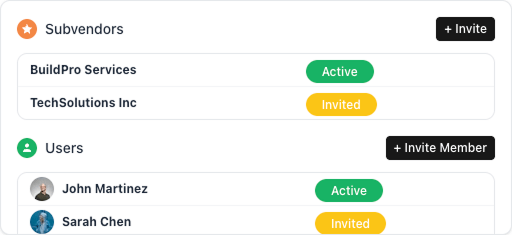
Velorona allows Company Admins to onboard sub-vendors through the Sub-Vendors module. Admins can search for an existing vendor record and link it or create a new record by entering the company and Primary Admin details. Payment terms and invoice frequency are configured during onboarding, followed by an invitation sent to the Primary Admin. After accepting the invitation, the sub-vendor's Primary Admin can manage their team and assign consultants to projects. Assigned consultants appear in the staffing firm's Manage Users view once they begin logging hours.
What happens when a sub-vendor invoice does not match approved hours in Velorona?
Velorona supports reviewing invoices received from sub-vendors through its Received Invoices workflow, where incoming invoices can be accepted or rejected. Its employee-hours invoice schedules also include approved billable time, while unapproved time is excluded from invoice generation. Before describing automatic invoice-to-hours reconciliation, discrepancy alerts, or payment blocking, confirm whether these capabilities are supported in the current product.
How can staffing firms verify previously approved consultant hours when a payment dispute occurs?
Velorona allows staffing firms to review consultant hours within invoice schedules, including a day-by-day breakdown of logged hours and their approval statuses. Schedule Activities provides an audit log, while previously tracked hours remain available for reporting and billing history. These records can help investigate billing disputes. Confirm the availability of historical approval timestamps, approver details, and complete timesheet change logs before claiming comprehensive audit-trail functionality.
How can I send and track invoices in Velorona?
Velorona allows users to finalize invoices, send them to clients, resend invoices already in the payment flow, and follow up with recipients. Users can track invoice statuses such as Draft, In Review, Pending, Pending Confirmation, Paid, Overdue, Rejected, and Archived. The Follow Up action opens a panel where users can compose a message with a PDF copy of the invoice automatically attached. Confirm whether additional delivery methods, client-portal access, and invoice-open tracking are supported, as these capabilities are not explicitly documented.